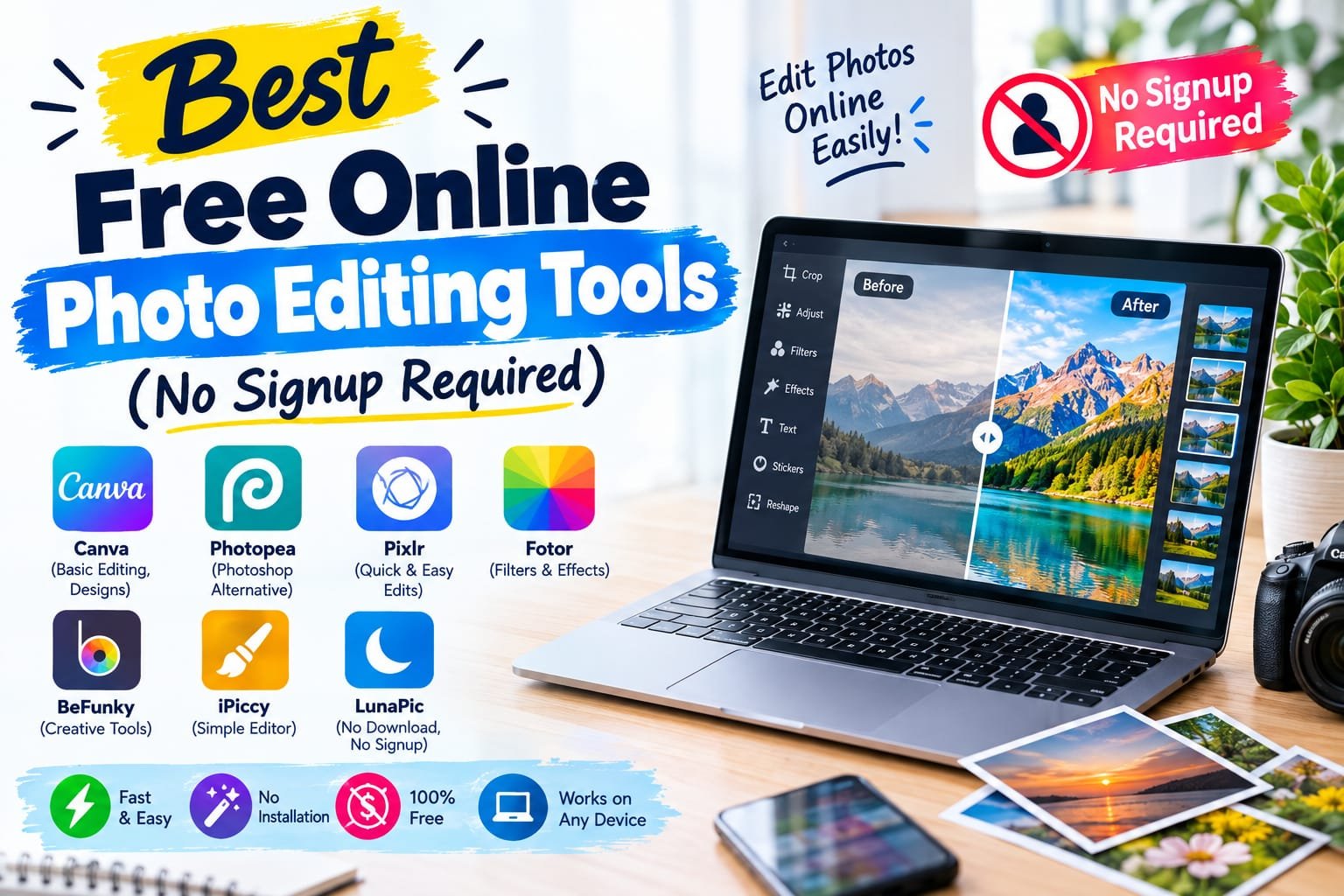
Need to crop a photo, fix the lighting, or slap a quick filter on an image, but you don’t want to download an app or create yet another account? You’re in the right place. Most people don’t need Photoshop-level power for everyday edits — they need something fast, free, and ready the moment they open the browser tab.
I’ve run into this exact problem more times than I’d like to admit — resizing an image for a listing, fixing a dark photo before sending it to a client, cropping a screenshot for a blog post. None of that requires a signup wall. Below is a rundown of the best free online photo editors that skip the registration step entirely, along with how to pick the right one and a few mistakes worth avoiding.
What is a No-Signup Photo Editor?
A no-signup photo editor is a browser-based tool that lets you upload, edit, and download an image without creating an account. You open the site, do your edit, and leave — no email verification, no password, no waiting for a confirmation link.
For example, if you just need to crop a profile picture to a square before uploading it somewhere, a no-signup tool gets that done in under a minute, versus installing desktop software for a 10-second task.
Why No-Signup Editors Matter in 2026
Current Trend or Statistic
Browser-based editing has become noticeably more capable in the past couple of years. Many of these tools now run entirely in-browser using modern web technology, which means faster load times and no need to install anything — a shift that’s made “quick edit” tools genuinely competitive with lightweight desktop apps.
Who Benefits and How
- Online sellers quickly clean up product photos before listing them.
- Students and job seekers resize and touch up photos for resumes or applications.
- Bloggers and content creators crop and compress images before publishing.
- Anyone in a hurry who just needs one quick fix without downloading software.
Best Free Online Photo Editing Tools (Reviewed)
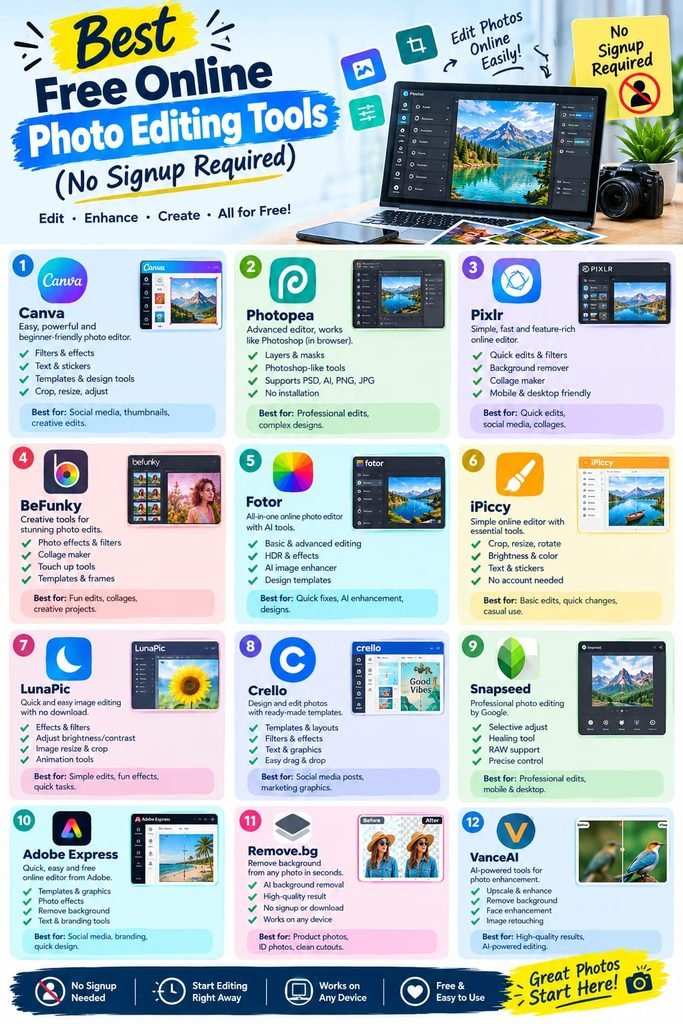
1. Photopea
Features: Full-featured browser-based editor with layers, filters, and Photoshop-style tools. Pros: Handles PSD files, extremely powerful for a free tool. Cons: Interface can feel overwhelming for casual users. Price: Free (ad-supported). Best for: Users who want Photoshop-like power without installing anything.
2. Pixlr E
Features: AI-powered editing, background removal, and quick filters. Pros: Clean interface, good balance of simple and advanced tools. Cons: Some AI features require a premium unlock. Price: Free tier available. Best for: Quick edits with a modern, approachable interface.
3. Fotor
Features: One-click enhancement, collage maker, and basic retouching. Pros: Very beginner-friendly, great for social media graphics. Cons: Watermarks may appear on certain export options. Price: Free tier available. Best for: Social media images and simple photo touch-ups.
4. Canva Photo Editor
Features: Cropping, filters, background removal, and text overlays. Pros: Doubles as a design tool if you need more than just editing. Cons: Some tools require Canva Pro. Price: Free tier available. Best for: Combining photo edits with graphic design in one place.
5. iLoveIMG
Features: Resize, crop, compress, and convert images in bulk. Pros: Handles multiple images at once — a real time-saver. Cons: Not built for detailed retouching, more of a utility tool. Price: Free. Best for: Bulk resizing and compressing images quickly.
6. BeFunky
Features: Photo editing, collage making, and basic AI touch-up tools. Pros: Simple drag-and-drop interface. Cons: Free version limits export resolution. Price: Free tier available. Best for: Casual editing and quick collages.
7. Simple Image Resizer
Features: Fast resizing, cropping, and format conversion. Pros: No frills, does exactly what it says quickly. Cons: Very limited beyond basic resizing. Price: Free. Best for: Quick technical fixes like resizing for a specific platform.
8. Photoscape Online
Features: Batch editing, filters, and basic color correction. Pros: Good for editing multiple photos with a consistent look. Cons: Interface feels a bit dated compared to newer tools. Price: Free. Best for: Batch editing a set of similar photos.
How to Choose the Right Tool
Factor 1: How complex is your edit?
A quick crop or resize doesn’t need a tool like Photopea — something simpler like iLoveIMG will be faster. Save the heavier tools for detailed retouching or layered edits.
Factor 2: Export quality and limits
Some free tools cap resolution or add watermarks on export. If the final image matters — like a product photo — check the export terms before you invest time editing.
Step-by-Step: How to Edit a Photo Online (No Signup)
Step 1: Pick a tool that matches your task
Simple crop or resize? Go with a lightweight tool. Detailed retouching? Pick something with layers, like Photopea.
Step 2: Upload and make your edits
Most tools let you drag and drop the image directly into the browser window — no account needed to start.
Step 3: Download in the right format
Check whether you need JPG, PNG, or WebP, and confirm the export doesn’t add an unwanted watermark.
Comparison Table
| Tool | Price | Best Feature | Rating |
|---|---|---|---|
| Photopea | Free | Photoshop-style layered editing | 4.7/5 |
| Pixlr E | Free / Paid | AI-powered quick edits | 4.5/5 |
| Fotor | Free / Paid | One-click enhancement | 4.4/5 |
| Canva Photo Editor | Free / Paid | Editing + design combo | 4.6/5 |
| iLoveIMG | Free | Bulk resize & compress | 4.5/5 |
| BeFunky | Free / Paid | Collages & casual edits | 4.3/5 |
Common Mistakes to Avoid
- Ignoring export resolution limits. Always check what quality you’re actually downloading before using the image somewhere important.
- Over-editing with filters. It’s tempting to stack five filters at once — usually one subtle adjustment looks more natural.
- Skipping compression for web use. Large uncompressed images slow down websites; most of these tools have a built-in compressor worth using before uploading anywhere.
Pros and Cons Summary
Pros: No account needed, works instantly in the browser, and most tools are genuinely free for basic edits. Cons: Advanced features are often gated behind a paid plan, and export quality can be limited on the free tier.
Conclusion
You don’t need to install anything or hand over your email address just to crop, resize, or touch up a photo. The tools above cover everything from quick fixes to detailed layered editing, all without a signup wall. Pick the one that matches how complex your edit actually is, and you’ll be done faster than it would’ve taken to install desktop software.