Ever tried to make a product photo look “store-ready,” only to spend twenty minutes fighting with a lasso tool in an app you barely understand? Removing a background used to mean either paying for Photoshop or carefully tracing around every strand of hair by hand. These days, AI can do it in seconds — and a surprising number of tools do it for free.
This guide breaks down the best free background remover tools available right now, how they compare, and how to pick the right one depending on whether you’re editing product shots, profile pictures, or design assets.
What Is a Background Remover Tool?
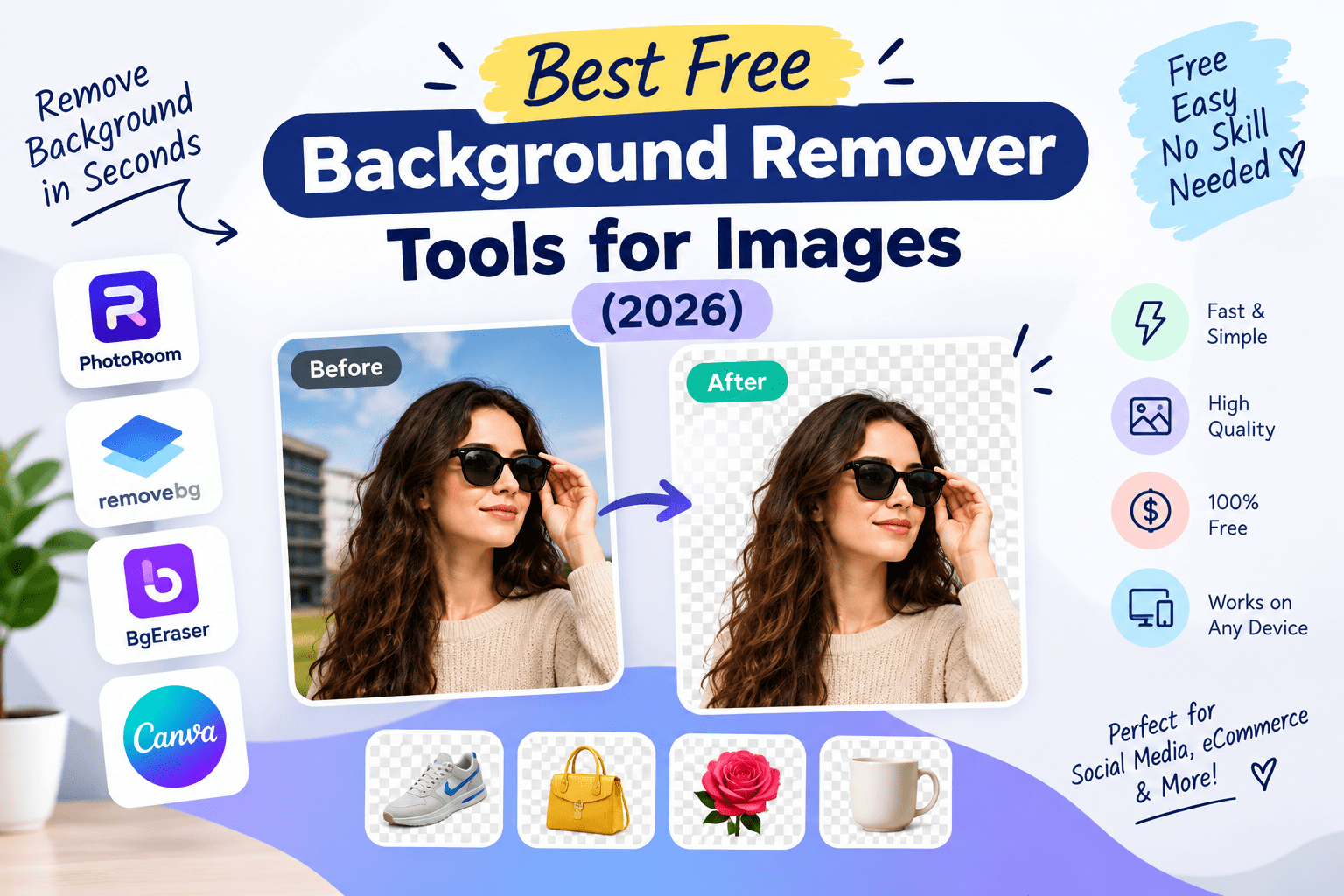
A background remover tool uses image recognition (usually AI-based) to automatically detect the main subject in a photo and cut it out from its background, leaving a transparent or replaceable backdrop. For example, an online seller photographing a pair of shoes on a cluttered desk can upload the image and get back just the shoes on a clean, transparent background in a few clicks — no manual masking needed.
Why Background Removal Matters in 2026
E-commerce and Social Media Demand Clean Visuals
Marketplaces like Amazon, Etsy, and Shopify often require plain white or transparent backgrounds for product listings. On social media, clean cutouts make graphics, thumbnails, and ads look more professional without needing a design degree.
Who Benefits Most
Online sellers use it to meet marketplace photo standards. Content creators use it for thumbnails and memes. Small business owners use it for logos and marketing graphics. Students and job seekers even use it to clean up headshots for resumes and LinkedIn.
Best Free Background Remover Tools (Reviewed)
1. remove.bg
Features: One-click AI background removal, batch processing, API access for developers. Pros: Extremely fast and accurate, especially with people and product photos. Cons: Free plan only exports lower-resolution images; HD downloads require credits. Price: Free tier (preview quality); paid plans for HD exports. Best for: Quick, high-accuracy cutouts of people and products.
2. Canva Background Remover
Features: Built into Canva’s editor, lets you remove and immediately replace the background within the same design. Pros: No need to switch apps if you’re already designing in Canva. Cons: Feature is limited to Canva Pro on some plans, though free trials are available. Price: Free with limitations; full access via Canva Pro. Best for: Users building social graphics or marketing materials in Canva.
3. Adobe Express Background Remover
Features: AI-powered removal with easy background replacement, integrates with other Adobe Express design tools. Pros: Reliable edge detection, especially for hair and fine details. Cons: Some advanced export options are behind a paywall. Price: Free tier available. Best for: Users who want Adobe-quality results without a full Photoshop subscription.
4. Slazzer
Features: AI background remover with batch processing and an API for bulk product photo editing. Pros: Handles complex backgrounds well, including busy or textured scenes. Cons: Free plan has a limited number of monthly images. Price: Free tier (limited credits); paid plans for higher volume. Best for: Small online stores processing multiple product photos.
5. PhotoRoom
Features: Background removal plus AI-generated background replacement scenes, mobile-first design. Pros: Great for product photography — can place your subject into a studio-style scene instantly. Cons: Some premium backgrounds and templates require a subscription. Price: Free tier; Pro plan for advanced features. Best for: Mobile sellers editing photos directly from their phone.
6. Fotor Background Remover
Features: AI cutout tool combined with a broader photo editing suite (filters, retouching, collage maker). Pros: Useful if you want editing beyond just background removal. Cons: Interface can feel cluttered with upsells for the paid plan. Price: Free tier with watermark on some exports; paid removes limits. Best for: Users who want an all-in-one photo editor, not just a cutout tool.
7. Pixlr Background Remover
Features: Browser-based AI removal tool with layering support for further edits. Pros: No install needed, works directly in-browser, decent accuracy. Cons: Free version has ads and export limits. Price: Free with ads; premium removes ads and limits. Best for: Quick browser-based edits without downloading software.
8. GIMP (with AI plugins)
Features: Free open-source photo editor; background removal via built-in select tools or third-party AI plugins. Pros: Completely free, fully offline, highly customizable. Cons: Steeper learning curve than one-click AI tools. Price: Free. Best for: Users comfortable with manual editing who want full control at zero cost.
9. Background Eraser (mobile app)
Features: Mobile app with AI auto-detection plus manual touch-up brush for tricky edges. Pros: Simple, fast, works well for everyday phone photos. Cons: Occasional ads in the free version. Price: Free with optional in-app purchases. Best for: Quick edits on the go from a phone.
10. Unscreen (by remove.bg)
Features: AI background removal specifically for video, not just still images. Pros: Rare free option for removing backgrounds from short video clips. Cons: Free tier has resolution and length limits. Price: Free tier; paid plans for longer/HD video exports. Best for: Creators needing background removal for short video content.
How to Choose the Right Tool
Factor 1: Resolution Needs
If you need high-resolution exports for print or professional listings, check whether the free tier limits resolution (like remove.bg) before committing to a workflow.
Factor 2: Volume of Images
If you’re processing dozens of product photos regularly, prioritize tools with batch processing (Slazzer, remove.bg) over one-image-at-a-time editors.
Step-by-Step: How to Remove a Background for Free
Step 1: Choose Your Tool
Pick a tool based on your platform — browser-based for desktop work, app-based (like PhotoRoom) if you’re editing on your phone.
Step 2: Upload and Auto-Detect
Upload your image and let the AI detect the subject automatically; most tools do this within seconds.
Step 3: Refine and Export
Use manual touch-up brushes if the tool offers them to fix any missed edges (common with hair or fur), then export as a transparent PNG.
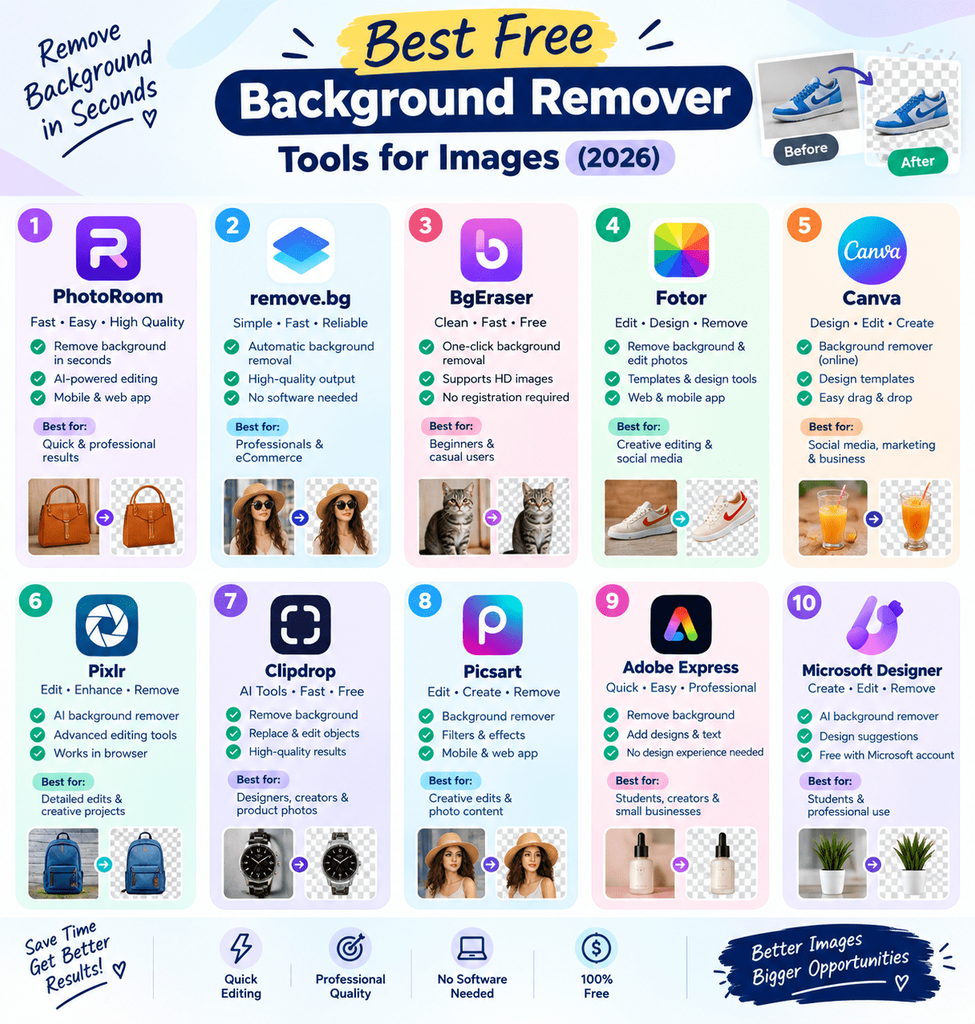
Comparison Table
| Tool | Price | Best Feature | Rating |
|---|---|---|---|
| remove.bg | Free (limited) / paid HD | Fast, accurate cutouts | 4.7/5 |
| Canva | Free (limited) / Pro | Design integration | 4.5/5 |
| Adobe Express | Free tier | Edge detail accuracy | 4.6/5 |
| Slazzer | Free (limited) / paid | Batch processing | 4.4/5 |
| PhotoRoom | Free tier / Pro | Scene replacement | 4.6/5 |
| Fotor | Free (watermark) / paid | All-in-one editing | 4.2/5 |
| Pixlr | Free (ads) / premium | Browser-based, no install | 4.1/5 |
| GIMP | Free | Full manual control | 4.0/5 |
| Background Eraser | Free (ads) | Mobile touch-up brush | 4.2/5 |
| Unscreen | Free (limited) / paid | Video background removal | 4.3/5 |
Common Mistakes to Avoid
- Not checking export resolution. Some free tiers cap resolution, which looks fine on-screen but poor in print.
- Skipping edge touch-ups. AI can miss fine details like flyaway hair — a quick manual fix saves the final image.
- Using the wrong file format. Always export as PNG (not JPG) to preserve transparency.
- Ignoring lighting mismatches. If you’re placing a subject on a new background, mismatched lighting or shadows can make the edit look fake.
Pros and Cons Summary
Pros: Saves significant editing time compared to manual masking, free tiers are genuinely usable for casual and small business needs, most tools require no design skill, works across product photos, portraits, and even video.
Cons: Free tiers often cap resolution or monthly image count, AI can still struggle with complex edges like hair or fur, some tools push aggressive upsells, batch processing usually requires a paid plan.
Conclusion
You don’t need expensive software to get clean, professional-looking cutouts anymore. Whether you’re prepping product photos for an online store or just cleaning up a profile picture, one of the free tools above will likely cover your needs. Try remove.bg or PhotoRoom first for the fastest results, and keep GIMP in your back pocket for anything the AI tools can’t quite nail.