Need to fix a typo, sign a document, or merge a few PDFs together, but don’t want to pay for Adobe Acrobat just to do it once? You’re far from alone. PDFs are one of those file types everyone deals with constantly — contracts, resumes, invoices, forms — yet most people don’t need a full paid suite to handle basic edits.
I’ve dealt with this exact scenario plenty of times: a client sends over a contract with one wrong date, or a form needs a quick signature before a deadline. Below is a breakdown of the best free online PDF editors, what each one actually handles well, and how to avoid the common pitfalls that come with editing sensitive documents online.
What is an Online PDF Editor?
An online PDF editor is a browser-based tool that lets you edit, annotate, merge, split, or sign PDF files without installing desktop software. You upload the file, make changes, and download the updated version — no subscription required for basic tasks.
For example, if you need to add your signature to a rental agreement, an online PDF editor gets it done in a couple of minutes instead of printing, signing, and scanning the document.
Why Online PDF Editors Matter in 2026
Current Trend or Statistic
PDFs remain the standard format for official documents — contracts, tax forms, resumes, and invoices — and that isn’t changing anytime soon. What has changed is how accessible editing them has become. Browser-based tools now handle tasks that used to require expensive desktop software, from merging files to filling out forms digitally.
Who Benefits and How
- Freelancers and small business owners edit and send contracts or invoices without extra software costs.
- Students and job seekers tweak resumes or fill out application forms quickly.
- Remote teams merge, split, or annotate shared documents without a shared paid license.
- Anyone signing documents avoids the print-sign-scan routine entirely.
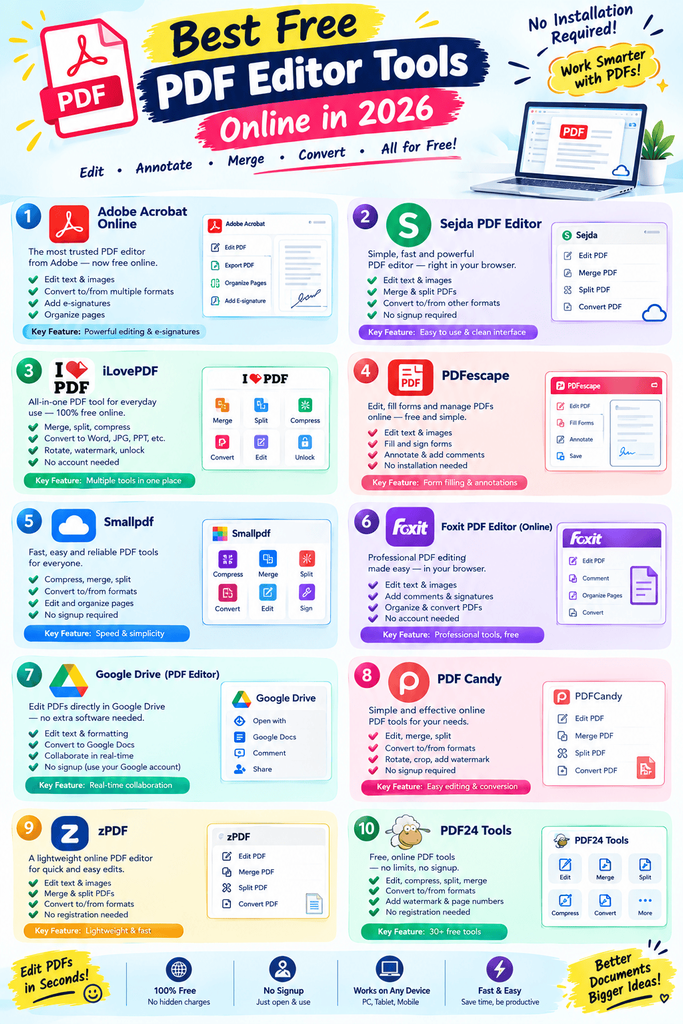
Best Free PDF Editor Tools (Reviewed)
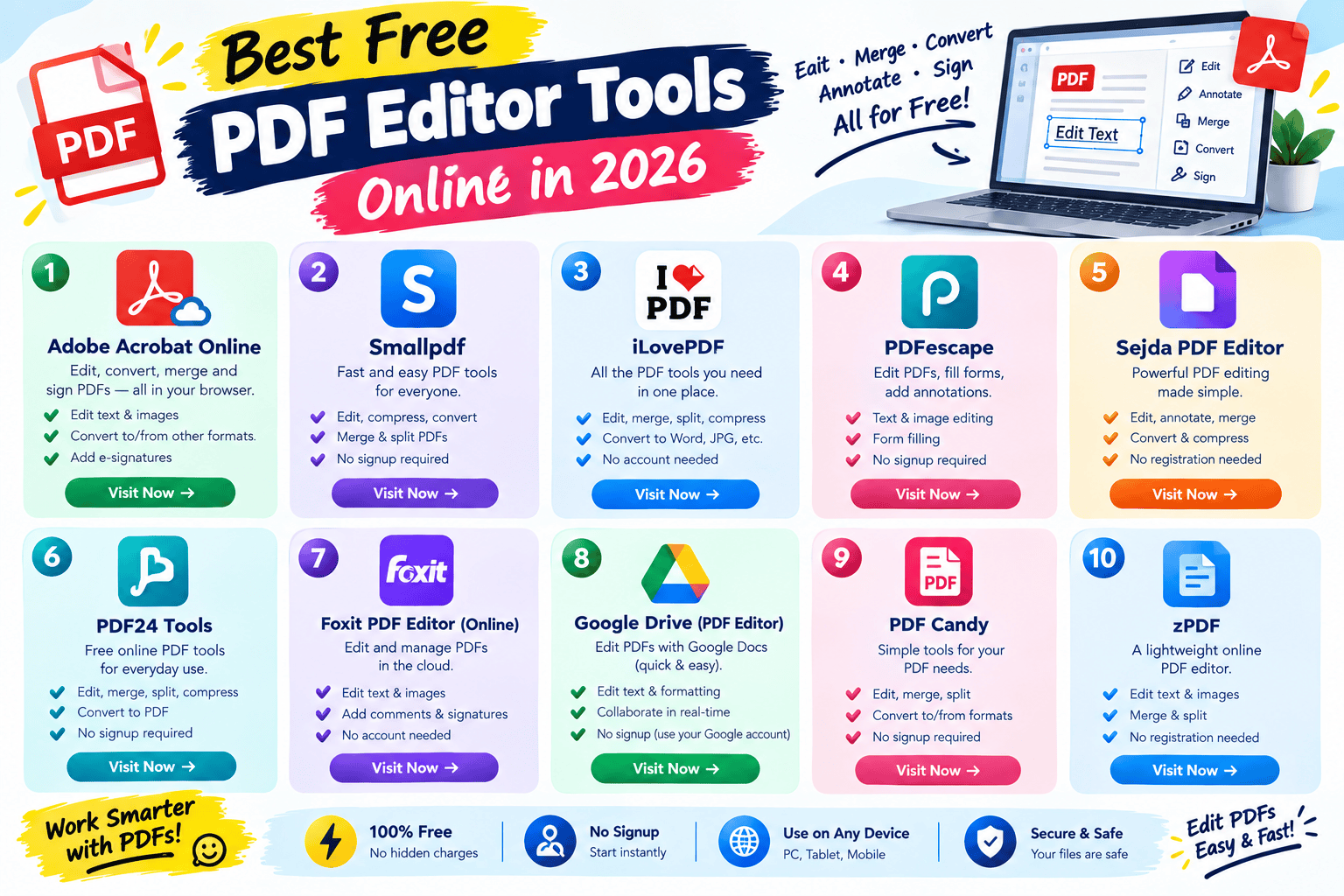
1. Smallpdf
Features: Edit, merge, split, compress, and convert PDFs with a clean interface. Pros: Very intuitive, handles most common tasks in a few clicks. Cons: Free plan limits the number of tasks per day. Price: Free tier available. Best for: Quick everyday PDF tasks like merging and compressing.
2. iLovePDF
Features: Comprehensive toolset including editing, e-signatures, and format conversion. Pros: Broad feature set covers nearly every common PDF need. Cons: Some advanced tools require a premium account. Price: Free tier available. Best for: All-in-one PDF management for individuals and small teams.
3. PDFescape
Features: Direct text editing, form filling, and annotation tools. Pros: Lets you edit text directly on the page, which many free tools don’t offer. Cons: Interface feels a bit dated compared to newer competitors. Price: Free tier available. Best for: Editing text directly within an existing PDF.
4. Sejda
Features: Editing, merging, splitting, and e-signatures with a generous free tier. Pros: Clean design, handles larger files better than many competitors. Cons: Free tier limits how many tasks you can run per day. Price: Free tier available. Best for: Users who need reliable editing without daily heavy use.
5. PDF24 Tools
Features: A large suite of tools including merging, compressing, and OCR. Pros: No signup required for most tools, and completely free. Cons: Interface is more utilitarian, less polished visually. Price: Free. Best for: Users who want a no-frills, no-signup option.
6. DocHub
Features: Editing, signing, and form filling with cloud storage integration. Pros: Integrates well with Google Drive for quick access to documents. Cons: Some features require a paid plan after a usage limit. Price: Free tier available. Best for: Users who store documents in Google Drive already.
7. Xodo
Features: PDF viewing, annotation, and light editing with a mobile-friendly design. Pros: Works well across desktop and mobile. Cons: Editing tools are more limited than dedicated editors like Sejda. Price: Free. Best for: Annotating and reviewing PDFs across devices.
8. Canva PDF Editor
Features: Basic PDF editing combined with Canva’s design tools. Pros: Useful if you’re already editing visuals in Canva. Cons: Not built specifically for heavy document editing. Price: Free tier available. Best for: Light edits when you’re already working inside Canva.
How to Choose the Right Tool
Factor 1: What kind of edit do you need?
Merging and compressing are simple tasks most free tools handle well. Direct text editing or form filling requires a more specialized tool like PDFescape or Sejda.
Factor 2: Document sensitivity
For contracts or anything containing personal information, check the tool’s privacy policy and whether files are deleted after processing before uploading anything sensitive.
Step-by-Step: How to Edit a PDF Online for Free
Step 1: Choose a tool based on your task
Editing text, filling a form, and merging files aren’t all handled equally well by every tool — match the tool to the specific job.
Step 2: Upload your file and make changes
Most tools let you drag and drop the PDF directly into the browser, no account required for basic edits.
Step 3: Download and double-check the result
Always open the downloaded file to confirm formatting held up correctly before sending it anywhere important.
Comparison Table
| Tool | Price | Best Feature | Rating |
|---|---|---|---|
| Smallpdf | Free / Paid | Simple all-around editing | 4.6/5 |
| iLovePDF | Free / Paid | Broad toolset | 4.6/5 |
| PDFescape | Free / Paid | Direct text editing | 4.3/5 |
| Sejda | Free / Paid | Generous free daily limit | 4.5/5 |
| PDF24 Tools | Free | No-signup convenience | 4.4/5 |
| DocHub | Free / Paid | Google Drive integration | 4.4/5 |
Common Mistakes to Avoid
- Uploading sensitive documents to unknown sites. Stick to reputable tools and check their data retention policy first.
- Not checking formatting after editing. Text edits can sometimes shift layout — always review the final file before sending it.
- Hitting daily free limits mid-task. Some tools cap free usage per day, so plan bigger projects accordingly.
Pros and Cons Summary
Pros: No expensive software needed, most common tasks are covered by free tiers, and everything runs in the browser. Cons: Daily usage limits on some tools, and advanced features like OCR or batch processing often require a paid upgrade.
Conclusion
You don’t need paid software just to edit, merge, or sign a PDF. The free tools above cover the vast majority of everyday document tasks, from quick text fixes to full form filling. Pick the one that matches your specific need, keep an eye on daily usage limits, and always double-check sensitive documents before uploading them anywhere.