Opening a video editor for the first time can feel like stepping into a cockpit — timelines, tracks, transitions, and a dozen buttons you’ve never seen before. The good news is that most beginners don’t need the tool professionals use. They need something that gets a clean, watchable video out the door without a steep learning curve.
I remember the first time I tried editing a simple vlog and spent 45 minutes just figuring out how to trim a clip. It shouldn’t be that hard, and with the right tool, it isn’t. Here’s a rundown of the best video editing tools for beginners in 2026, covering both free and paid options, so you can pick one that matches your patience level and budget.
What is a Beginner Video Editing Tool?
A beginner video editing tool is software designed with a simplified interface, letting new users trim, combine, and enhance video clips without needing professional-level training. It typically includes drag-and-drop editing, preset transitions, and templates that handle the technical heavy lifting.
For example, instead of manually keyframing a fade transition, a beginner-friendly tool lets you drag a pre-built transition between two clips and adjust the duration with a slider.
Why Beginner-Friendly Editors Matter in 2026
Current Trend or Statistic
Short-form video content continues to dominate how people consume media, and that demand has pushed editing tools to become far more approachable than they used to be. Many editors now include AI-assisted features like auto-captioning and scene detection, cutting hours off what used to be manual, tedious work.
Who Benefits and How
- Content creators produce polished videos for social platforms without hiring an editor.
- Small business owners create product demos or ads in-house.
- Students put together video projects and presentations more efficiently.
- Hobbyists turn vacation clips or personal projects into shareable videos.
Best Video Editing Tools for Beginners (Reviewed)
1. CapCut
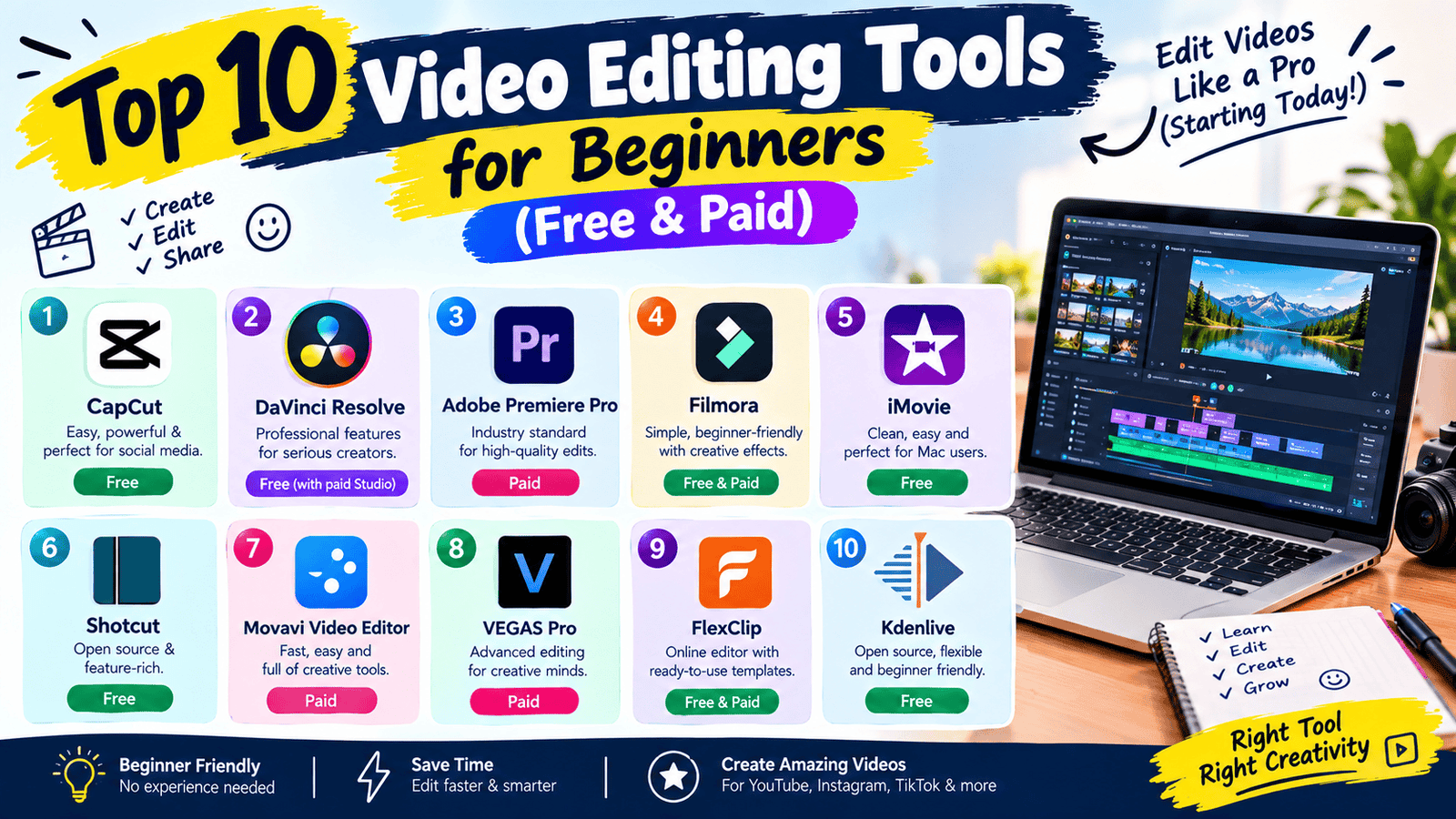
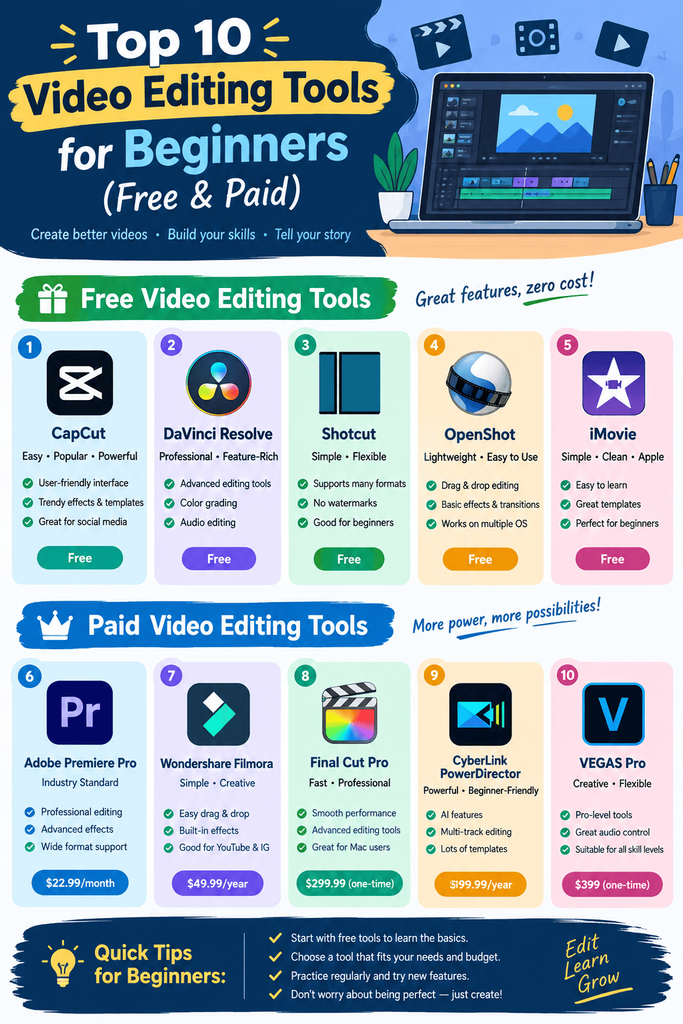
Features: Templates, auto-captions, and simple drag-and-drop editing built for short-form video. Pros: Extremely intuitive, great for social media content specifically. Cons: Advanced color grading and audio tools are limited compared to pro software. Price: Free, with optional Pro features. Best for: Beginners making content for TikTok, Reels, or Shorts.
2. DaVinci Resolve
Features: Professional-grade editing, color correction, and audio tools with a free version. Pros: Genuinely powerful for a free tool — used by actual professionals. Cons: Steeper learning curve than most “beginner” tools on this list. Price: Free, with a paid Studio version available. Best for: Beginners who want room to grow into more advanced editing.
3. iMovie
Features: Simple timeline editing, built-in templates, and easy export for Mac and iOS. Pros: Pre-installed on Apple devices, very approachable interface. Cons: Mac and iOS only — not available on Windows. Price: Free (Apple devices only). Best for: Apple users who want a no-cost, no-hassle starting point.
4. Clipchamp
Features: Templates, stock footage, and simple trimming tools built into Windows. Pros: Comes free with Windows, decent template library. Cons: Some premium templates and stock assets require a paid plan. Price: Free tier available. Best for: Windows users who want a built-in option with no extra install.
5. Adobe Premiere Rush
Features: Simplified version of Premiere Pro with cross-device editing. Pros: Syncs projects across desktop and mobile easily. Cons: Free tier has limited export minutes per month. Price: Free tier available. Best for: Beginners planning to eventually move into Premiere Pro.
6. InShot
Features: Mobile-first editing with filters, music, and speed controls. Pros: One of the easiest mobile editors for quick social clips. Cons: Free version adds a watermark to exports. Price: Free, with paid watermark removal. Best for: Editing directly from a phone for quick social posts.
7. Filmora
Features: Drag-and-drop editing with a large library of effects and transitions. Pros: Good balance between simplicity and creative control. Cons: Free version exports with a watermark. Price: Free trial, paid for watermark-free exports. Best for: Beginners who want more creative effects than basic trimming.
8. VN Video Editor
Features: Mobile and desktop editing with keyframe animation and no watermark on free exports. Pros: Surprisingly capable for a completely free tool. Cons: Interface can feel cluttered with so many features packed in. Price: Free. Best for: Beginners wanting free, watermark-free exports.
9. Canva Video Editor
Features: Simple video editing combined with Canva’s design and template library. Pros: Great if you’re already using Canva for other content. Cons: Not built for complex multi-track editing. Price: Free tier available. Best for: Quick, design-forward videos like social promos.
10. HitFilm Express
Features: Editing plus visual effects and compositing tools. Pros: Offers effects usually reserved for paid professional software. Cons: Some effect packs require “unlocking” through social shares or purchase. Price: Free, with optional paid add-ons. Best for: Beginners interested in visual effects alongside basic editing.
How to Choose the Right Tool
Factor 1: What platform will the video live on?
Short-form content for social media favors tools like CapCut or InShot. Longer-form YouTube content might benefit from DaVinci Resolve’s more robust toolset.
Factor 2: How much time you want to invest in learning
If you want to be editing within minutes, stick with CapCut, iMovie, or Canva. If you’re willing to invest a few hours learning, DaVinci Resolve opens up far more creative control.
Step-by-Step: How to Start Editing Video as a Beginner
Step 1: Import your clips
Drag your raw footage into the timeline of your chosen tool.
Step 2: Trim and arrange your clips
Cut out unnecessary footage and arrange clips in the order that tells your story clearly.
Step 3: Add transitions, text, and export
Keep transitions simple at first, add captions or titles where needed, then export in the resolution your platform requires.
Comparison Table
| Tool | Price | Best Feature | Rating |
|---|---|---|---|
| CapCut | Free / Paid | Social media templates | 4.7/5 |
| DaVinci Resolve | Free / Paid | Professional-grade free tools | 4.6/5 |
| iMovie | Free | Simple Apple-native editing | 4.5/5 |
| Clipchamp | Free / Paid | Built into Windows | 4.3/5 |
| InShot | Free / Paid | Mobile-first quick edits | 4.4/5 |
| Filmora | Free trial / Paid | Effects & transitions library | 4.4/5 |
Common Mistakes to Avoid
- Overusing transitions and effects. A simple cut often looks cleaner than a flashy transition on every clip.
- Ignoring audio quality. Viewers tolerate rough visuals more than bad audio — always check sound levels before exporting.
- Exporting in the wrong resolution. Match your export settings to the platform you’re posting on to avoid cropping or quality loss.
Pros and Cons Summary
Pros: Most beginner tools are free or have a generous free tier, interfaces are approachable, and templates speed up the learning curve. Cons: Free versions often add watermarks or limit exports, and truly advanced editing still requires learning a more complex tool eventually.
Conclusion
You don’t need professional software or years of experience to start editing video. The tools above cover everything from quick mobile edits to more advanced desktop editing, all approachable enough for a true beginner. Pick one based on where your video will be published and how much time you want to invest in learning it.