At some point, everyone runs into the same annoyance: a client sends a file in a format your software won’t open, or you need to turn a Word doc into a PDF before you can submit it somewhere. File conversion sounds like a small problem, but it eats up more time than it should when you’re stuck retyping content or hunting for the right software.
Online file converters solve this without installing anything — you upload a file, pick the format you want, and download the result a few seconds later. This guide covers the best online converters for PDFs, Word documents, images, and video in 2026, along with when it’s actually worth using a desktop tool instead.
What Is an Online File Converter?
An online file converter is a web-based tool that changes a file from one format into another — for example, turning a DOCX file into a PDF, a PNG into a WebP, or an MOV video into an MP4 — without requiring you to install dedicated software.
As an example: someone applying for a job might write their resume in Google Docs, then use an online converter to turn it into a clean, universally readable PDF before emailing it to a hiring manager.
Why File Conversion Tools Matter in 2026
Formats Still Don’t Play Nicely Together
Despite how standardized digital files have become, mismatched formats are still a daily headache — a scanned contract that needs to become searchable text, a HEIC photo from an iPhone that a Windows program won’t open, or a video file that needs to shrink before it can be emailed.
Who Relies on These Tools Most
- Freelancers and job seekers converting documents to PDF before sending them out
- Content creators converting images and videos between formats for different platforms
- Students and researchers turning scanned PDFs into searchable, editable text
- Small business owners batch-converting files without buying specialized software
Best Online File Converter Tools (Reviewed)
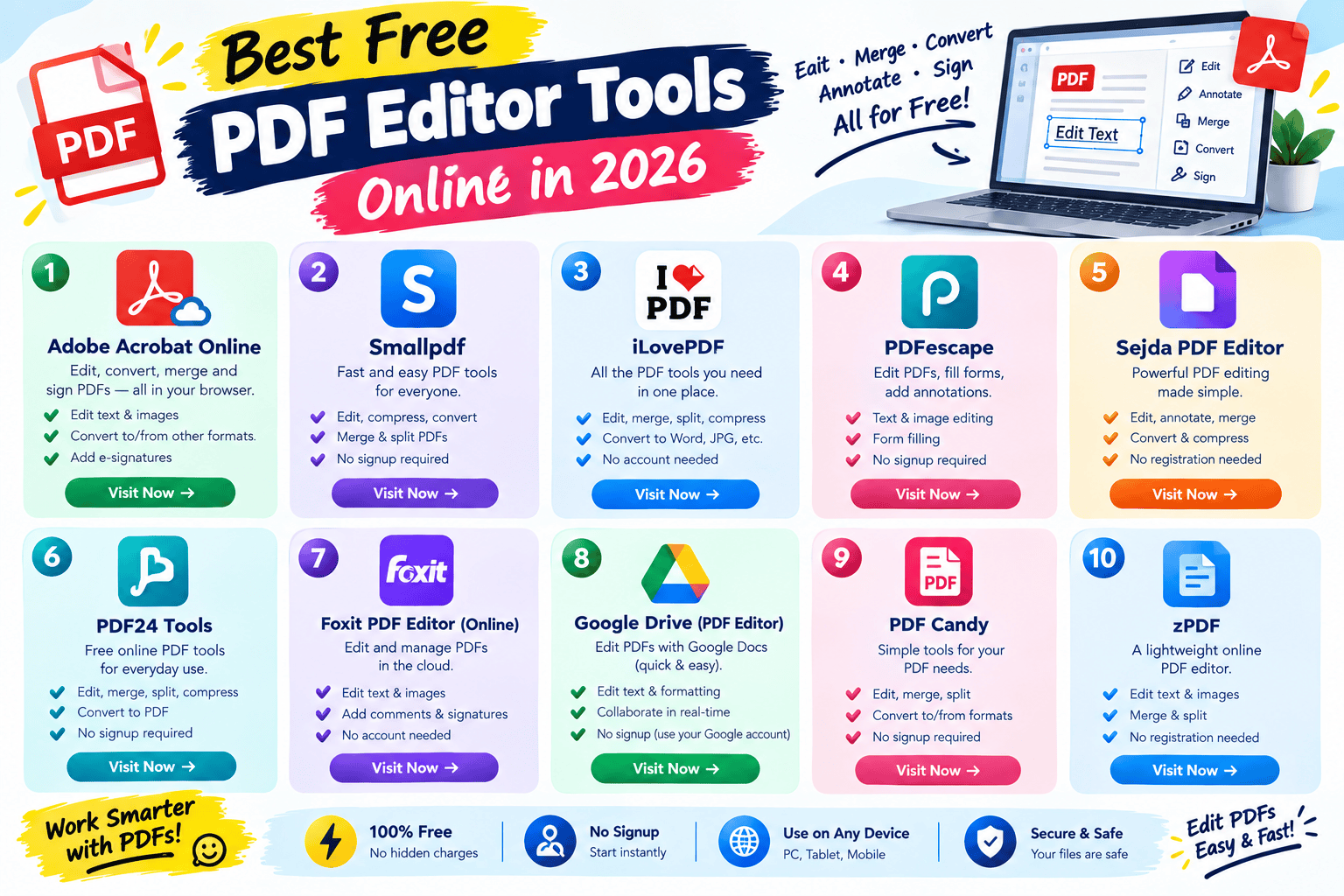
1. iLovePDF
Price: Free with generous limits; premium plans unlock higher file size caps and batch processing
iLovePDF is one of the most complete free PDF toolkits online — beyond straightforward conversion, it handles merging, splitting, and compressing PDFs in the same interface.
- Pros: Very generous free tier, handles Word/PowerPoint/image conversions to and from PDF, has a desktop app for offline work
- Cons: Ads on the free version can be distracting; lacks deeper editing features like text reflow
- Best for: Anyone who wants a completely free, all-in-one PDF conversion and management tool
2. Smallpdf
Price: Free with daily limits; paid plans typically around $9–12/month
Smallpdf has built a reputation as one of the most polished, easy-to-use online PDF platforms, with a clean interface that makes conversion feel almost instant.
- Pros: Simple, well-designed interface, strong PDF-to-Word and PDF-to-Excel conversion quality
- Cons: Free tier caps you at a limited number of conversions per day
- Best for: Occasional users who value a clean, fast experience over deep customization
3. CloudConvert
Price: Free tier (around 25 conversions/day); pay-as-you-go and API pricing for higher volume
CloudConvert stands out for sheer format coverage — it supports over 200 formats across documents, images, video, and audio, all from one browser-based tool.
- Pros: Extremely wide format support, works for documents, images, audio, and video in one place, API available for automation
- Cons: Heavy or frequent use requires paid credits rather than a flat subscription
- Best for: Users who need one tool that handles many different file types, not just PDFs
4. Convertio
Price: Free with limits; plans start around $9.99/month
Convertio is a strong CloudConvert alternative, also browser-based, supporting more than 300 formats with a similarly simple drag-and-drop interface.
- Pros: Very wide format support, straightforward interface, works across document, image, and media files
- Cons: Free tier is limited in file size and daily volume
- Best for: Quick one-off conversions across a wide range of uncommon file formats
5. Adobe Acrobat Online
Price: Free basic conversions; paid Acrobat plans start around $1.99–12.99/month depending on the tier
Since Adobe created the PDF format, it’s no surprise Acrobat delivers some of the best formatting fidelity available when converting to and from PDF, especially for complex layouts.
- Pros: Best-in-class formatting retention, excellent OCR for scanned documents, trusted for business and legal documents
- Cons: Full-featured plans require a subscription; free tier is limited to basic conversions
- Best for: Business and legal documents where formatting accuracy really matters
6. Foxit PDF Converter
Price: Free basic tools; paid plans for advanced features and OCR
Foxit is a lighter-weight alternative to Adobe Acrobat, popular in Windows-centric offices that want solid PDF conversion without Acrobat’s price tag.
- Pros: Fast performance, competitively priced compared to Acrobat, handles PDF-to-Word/Excel/PowerPoint conversion well
- Cons: Some advanced features are Windows-only
- Best for: Businesses that want a capable PDF converter without paying full Adobe pricing
7. HandBrake
Price: Completely free, open-source (desktop app, not browser-based)
HandBrake isn’t an online tool, but it deserves a mention because it’s the most reliable free video converter available, and it’s worth using instead of an online tool for large video files.
- Pros: Completely free, hardware-accelerated encoding, supports device-specific presets, no file size limits since it runs locally
- Cons: Requires downloading software; interface is more technical than browser-based converters
- Best for: Converting or compressing large video files without uploading them anywhere
8. VLC Media Player
Price: Completely free, open-source
Most people know VLC as a media player, but it has a lesser-known built-in conversion feature that works on nearly any audio or video format it can play.
- Pros: Completely free, works on nearly any audio/video format, no upload required since it’s local
- Cons: Conversion interface is buried and not very intuitive to find
- Best for: Anyone who already has VLC installed and needs a quick, no-cost video or audio conversion
9. ImageMagick
Price: Completely free, open-source
ImageMagick is a command-line tool, not something with a friendly interface, but it remains the gold standard for scripted, batch image conversion, especially for developers.
- Pros: Supports over 200 image formats, fully scriptable for batch jobs, free and extremely reliable
- Cons: Command-line only — not beginner-friendly for non-technical users
- Best for: Developers or technical users who need to batch-convert large numbers of images automatically
10. CloudConvert (Image Mode) / Built-in OS Tools
Price: Free
Worth calling out separately: both CloudConvert’s image conversion mode and built-in OS tools (Preview on Mac, Photos app batch tools, or Windows’ Paint) can handle everyday image conversions like HEIC to JPG without any extra software at all.
- Pros: Zero cost, no software to install for basic OS tools, CloudConvert covers more formats like WebP and SVG
- Cons: Built-in OS tools are limited in format support and batch capability
- Best for: Quick, everyday image conversions without any specialized software
How to Choose the Right Tool
Factor 1: Sensitivity of Your Files
If you’re converting sensitive documents — contracts, financial records, personal information — a locally-run tool like HandBrake, VLC, or your operating system’s built-in converter avoids uploading anything to a third-party server. For non-sensitive, everyday files, browser-based tools like iLovePDF or CloudConvert are faster and just as reliable.
Factor 2: Volume and File Size
Occasional single-file conversions are well covered by free tiers on Smallpdf or iLovePDF. If you’re regularly converting large batches or oversized files, a paid plan or a local tool like ImageMagick (for images) or HandBrake (for video) will save you from hitting upload limits constantly.
Step-by-Step: How to Convert a File Online
Step 1: Choose the Right Tool for Your File Type
Match the tool to your file — PDF-focused conversions go to iLovePDF, Smallpdf, or Adobe Acrobat; broader format needs go to CloudConvert or Convertio.
Step 2: Upload and Select Your Output Format
Upload your file and choose the format you need to convert it to. Many tools also let you adjust quality or compression settings at this stage — worth checking if file size matters for your use case.
Step 3: Convert, Review, and Download
Run the conversion, then open the result to confirm formatting, image quality, or text accuracy held up before you delete the original or send the converted file onward.
Comparison Table
| Tool | Price | Best Feature | Rating |
|---|---|---|---|
| iLovePDF | Free–premium | All-in-one free PDF toolkit | 4.5/5 |
| Smallpdf | Free (limited)–$9-12/mo | Clean, polished interface | 4.5/5 |
| CloudConvert | Free (25/day)–pay-as-you-go | Widest format coverage (200+) | 4.6/5 |
| Convertio | Free (limited)–$9.99/mo | 300+ supported formats | 4.3/5 |
| Adobe Acrobat Online | Free (basic)–$12.99/mo | Best formatting fidelity + OCR | 4.5/5 |
| Foxit PDF Converter | Free–paid tiers | Affordable Acrobat alternative | 4.2/5 |
| HandBrake | Free | Best free video converter/compressor | 4.6/5 |
| VLC Media Player | Free | Built-in audio/video conversion | 4.1/5 |
| ImageMagick | Free | Scriptable batch image conversion | 4.4/5 |
| Built-in OS tools / CloudConvert (images) | Free | Zero-cost everyday image conversion | 4.0/5 |
Common Mistakes to Avoid
- Uploading sensitive files to random online converters. Stick to local tools like HandBrake or your OS’s built-in converter for anything confidential.
- Ignoring quality settings on video and image conversions. Default settings can over-compress files — check the output before deleting your original.
- Not checking formatting after document conversions. PDF-to-Word conversions especially can shift layouts; always review before sending a converted file onward.
- Hitting daily limits mid-project. If you’re converting in bulk, check the tool’s free-tier caps first so you don’t get stuck partway through.
- Forgetting to delete originals from cloud converters. Some free tools retain uploaded files temporarily — check the tool’s retention policy if privacy is a concern.
Pros and Cons Summary
Pros of online file converters:
- No software installation required for most tools
- Usually free for everyday, occasional conversions
- Support a huge range of formats across documents, images, and media
- Fast — most conversions take seconds
Cons to keep in mind:
- Free tiers often cap daily conversions or file size
- Uploading sensitive files to third-party servers carries some privacy risk
- Complex document formatting can shift slightly during conversion
- Heavy or frequent use usually requires a paid plan or local software
Conclusion
File conversion shouldn’t be a chore, and thankfully most people never need to pay for it. For everyday PDF and document conversions, iLovePDF and Smallpdf cover the basics well. For broader format support across documents, images, and media, CloudConvert is hard to beat. And if privacy or large file sizes are a concern, local tools like HandBrake and VLC keep everything off third-party servers entirely.
Match the tool to what you’re actually converting and how sensitive the file is, and you’ll rarely need to pay for a conversion you only need to do once.