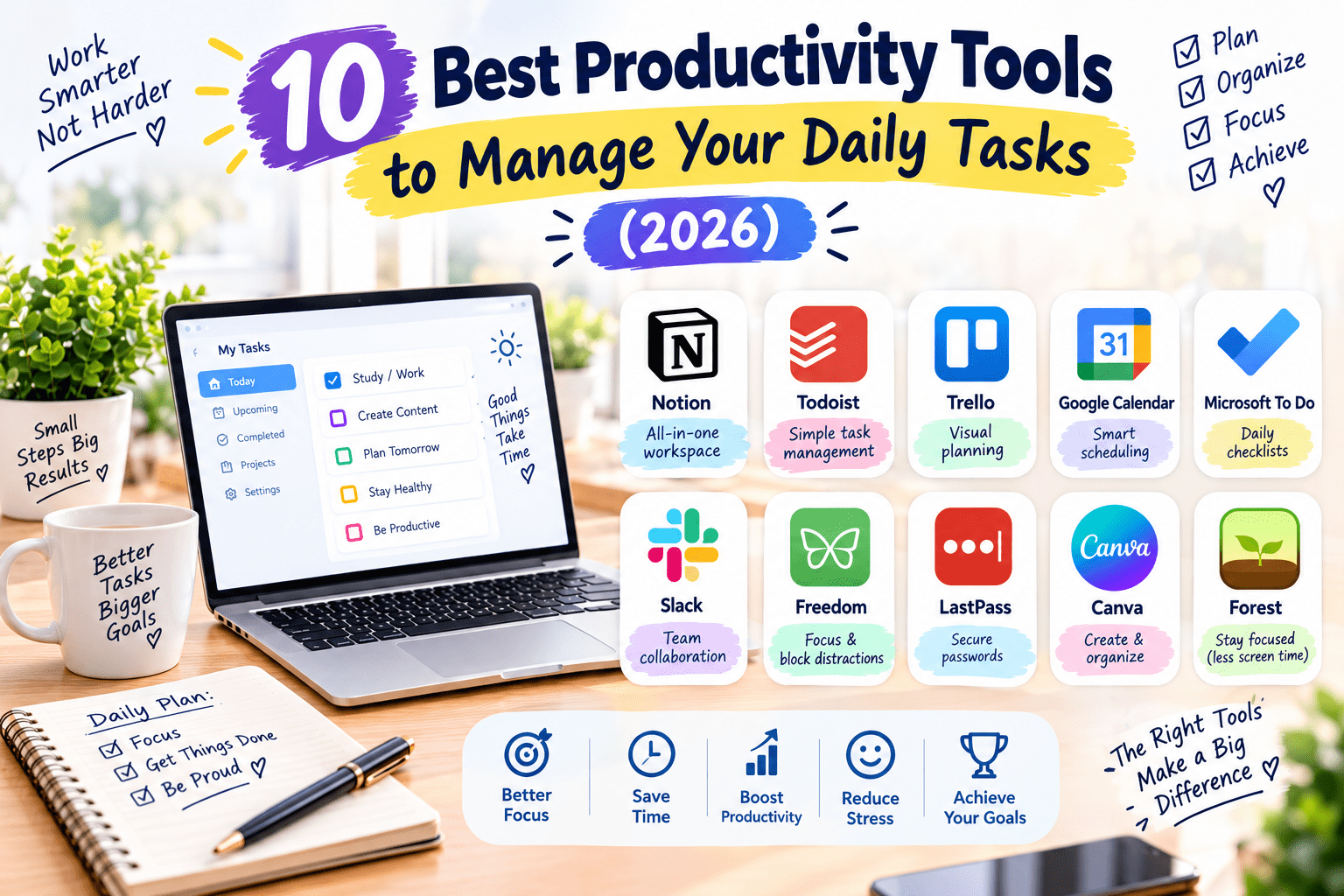
Ever ended a workday and realized you were “busy” for eight straight hours but couldn’t actually name what you finished? That scattered feeling usually isn’t a discipline problem — it’s a systems problem. The right productivity tool won’t magically create more hours in your day, but it will stop tasks from falling through the cracks and give you a clear view of what actually matters today.
This guide covers ten of the best productivity tools for managing daily tasks, from simple to-do lists to full project-management systems, so you can pick one that fits how you actually work instead of fighting against it.
What Is a Productivity Tool?
A productivity tool is any app designed to help you organize, prioritize, and track tasks, projects, or time. For example, instead of keeping a mental list of “things I need to do today” that quietly grows more stressful by the hour, a tool like Todoist lets you capture everything in one place, set deadlines, and check things off as you go — freeing up mental space for actual work.
Why Productivity Tools Matter in 2026
Remote and Hybrid Work Made Systems Non-Negotiable
With more people working across different locations and time zones, informal task tracking (sticky notes, verbal reminders) breaks down fast. Shared digital systems keep teams aligned even when nobody’s in the same room.
Who Benefits Most
Freelancers and solopreneurs use lightweight tools to juggle multiple clients. Teams use shared boards to track projects collaboratively. Students and personal users often just need a clean daily task list without the complexity of a full project-management suite.
Best Productivity Tools (Reviewed)
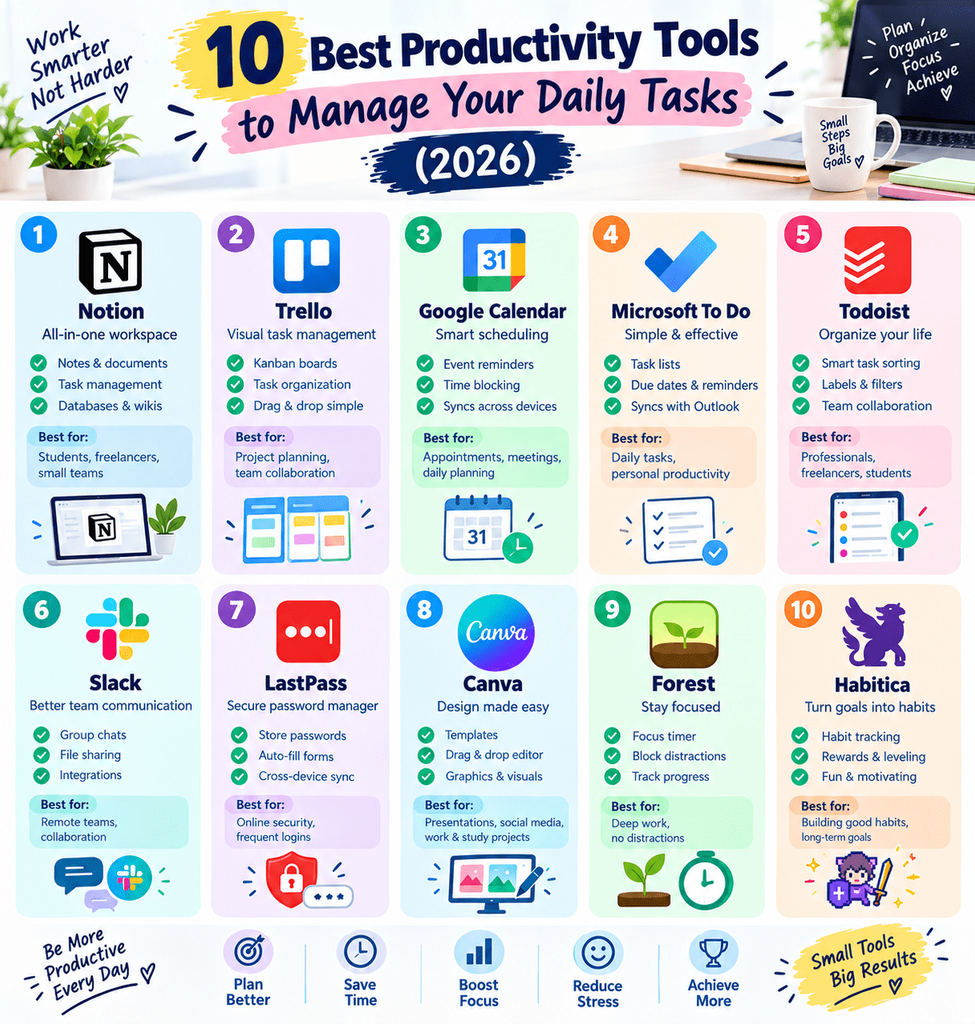
1. Todoist
Features: Task lists with due dates, priority levels, recurring tasks, and natural-language input (type “every Monday” and it schedules automatically). Pros: Clean, minimal interface that doesn’t overwhelm new users. Cons: Free plan limits the number of active projects. Price: Free tier; Pro around $4/month. Best for: Individuals wanting a simple, distraction-free daily task list.
2. Notion
Features: All-in-one workspace combining notes, task boards, databases, and calendars in customizable layouts. Pros: Extremely flexible — can be a task tracker, wiki, and project planner at once. Cons: The flexibility means more setup time before it feels organized. Price: Free for individuals; paid plans for teams. Best for: Users who want one workspace for tasks, notes, and planning combined.
3. Trello
Features: Kanban-style boards with drag-and-drop cards, checklists, and automation via “Butler.” Pros: Visual layout makes it easy to see task status at a glance. Cons: Can get cluttered on larger, more complex projects. Price: Free tier; paid plans add more automation and views. Best for: Visual thinkers and small teams managing straightforward workflows.
4. Asana
Features: Task lists, timelines, project boards, and workload tracking for teams. Pros: Strong for coordinating tasks across multiple people and departments. Cons: Can feel like overkill for solo, personal task management. Price: Free tier for small teams; paid plans scale with team size. Best for: Teams managing multi-step projects with several collaborators.
5. Microsoft To Do
Features: Simple daily task lists, integrates with Outlook and Microsoft 365. Pros: Straightforward and free, with no confusing extra features. Cons: Lacks advanced project-management features for complex work. Price: Free. Best for: Microsoft 365 users wanting a no-frills daily planner.
6. ClickUp
Features: Combines task lists, docs, goals, and time tracking in one platform with heavy customization. Pros: Packed with features — can replace several other tools at once. Cons: The sheer number of features can feel overwhelming at first. Price: Free tier; paid plans unlock more storage and features. Best for: Power users who want maximum customization in one tool.
7. Google Tasks
Features: Lightweight task list integrated directly into Gmail and Google Calendar. Pros: Zero learning curve if you already live in Gmail. Cons: Very basic — no priority levels or advanced organization. Price: Free. Best for: Gmail users wanting the simplest possible task list.
8. TickTick
Features: Task management with a built-in Pomodoro timer, habit tracker, and calendar view. Pros: Combines task tracking and time-blocking in one app. Cons: Some of the more advanced features require the paid tier. Price: Free tier; Premium around $3/month. Best for: Users who want task tracking and focus timers together.
9. Monday.com
Features: Customizable work boards, automation, and dashboards for tracking team progress. Pros: Highly visual, with strong reporting for managers. Cons: Free tier is limited to a small number of users. Price: Free tier for very small teams; paid plans scale up. Best for: Small businesses wanting visual project dashboards.
10. Sunsama
Features: Daily planning tool that pulls tasks from other apps (Trello, Asana, Gmail) into one focused daily view. Pros: Great for people who use multiple tools but want one place to plan the actual day. Cons: No free tier — it’s paid-only after a trial period. Price: Free trial, then subscription-based. Best for: Users juggling several tools who want a single daily planning layer on top.
How to Choose the Right Tool
Factor 1: Solo Use vs. Team Use
If you’re managing only your own tasks, simpler tools like Todoist or Google Tasks avoid unnecessary complexity. If you’re coordinating with others, Asana, Trello, or Monday.com are built for shared visibility.
Factor 2: How Much Structure You Actually Want
Highly flexible tools like Notion or ClickUp reward users who enjoy building their own system, while more rigid tools like Microsoft To Do work better if you just want something that works immediately with no setup.
Step-by-Step: How to Set Up a Daily Task System
Step 1: Brain-Dump Everything
Write down every task on your mind, no matter how small, into your chosen tool — getting it out of your head reduces mental clutter immediately.
Step 2: Prioritize and Schedule
Assign due dates and priority levels, then pick your top three “must-do” tasks for the day rather than trying to tackle everything at once.
Step 3: Review Daily
Spend five minutes each morning (or the night before) reviewing your list, moving unfinished tasks forward, and adjusting priorities as things change.
Comparison Table
| Tool | Price | Best Feature | Rating |
|---|---|---|---|
| Todoist | Free / $4/mo | Simple daily task lists | 4.6/5 |
| Notion | Free / paid teams | All-in-one workspace | 4.7/5 |
| Trello | Free / paid | Visual kanban boards | 4.5/5 |
| Asana | Free (small teams) / paid | Team project tracking | 4.5/5 |
| Microsoft To Do | Free | Outlook/365 integration | 4.2/5 |
| ClickUp | Free / paid | Maximum customization | 4.5/5 |
| Google Tasks | Free | Gmail integration | 4.0/5 |
| TickTick | Free / $3/mo | Built-in Pomodoro timer | 4.5/5 |
| Monday.com | Free (limited) / paid | Visual dashboards | 4.4/5 |
| Sunsama | Paid (trial available) | Cross-app daily planning | 4.4/5 |
Common Mistakes to Avoid
- Overcomplicating your setup. Spending hours customizing a system before ever using it is a common productivity trap in itself.
- Adding tasks without prioritizing. A 40-item list with no order just becomes another source of stress.
- Switching tools too often. Constantly hopping between apps resets your habits and loses historical task data.
- Ignoring recurring tasks. Manually re-adding the same weekly task wastes time — set up recurrence instead.
Pros and Cons Summary
Pros: Reduces mental load by getting tasks out of your head, most tools offer usable free tiers, visual tools make progress and bottlenecks easy to spot, integrates with calendars and email for fewer missed deadlines.
Cons: Some tools have a real setup learning curve, free tiers often cap projects, boards, or team members, too many features can become a distraction of their own, switching tools later means migrating tasks manually in most cases.
Conclusion
The best productivity tool isn’t the one with the most features — it’s the one you’ll actually keep using every day. Start with something simple, build the habit of checking it daily, and only add complexity if your workflow genuinely needs it. Pick one tool from this list today and give yourself one clear task list to work from tomorrow morning.