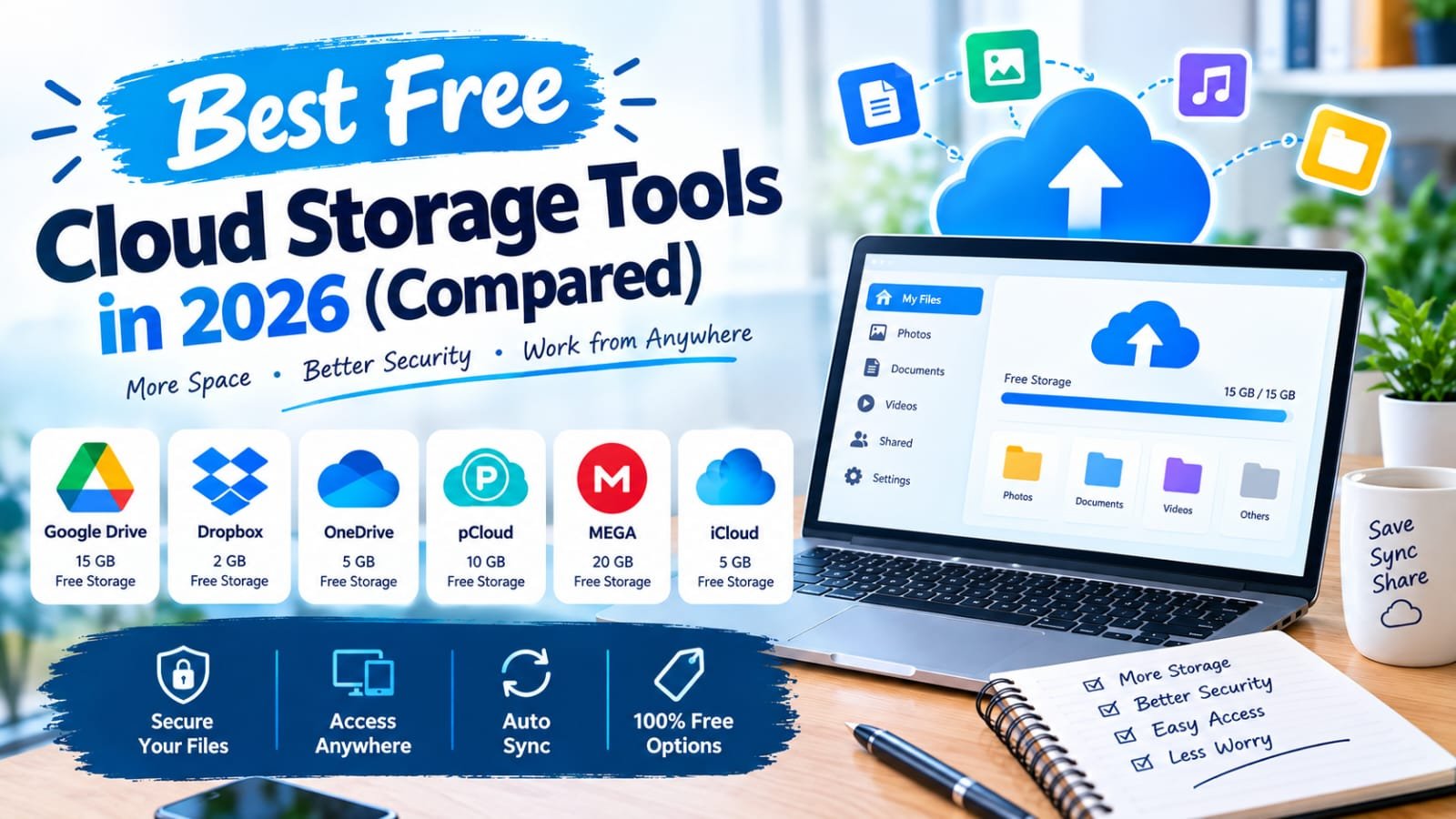
Ever had your laptop freeze up right before a deadline, and your stomach drop because you weren’t sure if that file was actually backed up anywhere? Local storage alone just isn’t a safe bet anymore — drives fail, laptops get lost, and phones get stolen. Cloud storage solves that problem, and the good news is you don’t need to pay a cent to get a solid amount of free space.
This guide compares the best free cloud storage tools available right now, how much space each one actually gives you, and which is the best fit depending on whether you’re a student, a small business, or just someone who wants peace of mind for their photos and documents.
What Is Cloud Storage?
Cloud storage lets you save files on remote servers instead of (or in addition to) your device, so you can access them from any device with an internet connection and avoid losing everything if your hardware fails. For example, a student writing a thesis could save it to Google Drive so that even if their laptop is stolen the week before submission, the file is still safely backed up and accessible from any computer.
Why Cloud Storage Matters in 2026
Multi-Device Life Makes Local-Only Storage Risky
Most people now switch between a phone, laptop, and sometimes a tablet throughout the day. Cloud storage keeps files in sync across all of them automatically, removing the need to email files to yourself or carry a USB drive around.
Who Benefits Most
Students use it to keep coursework backed up and accessible across devices. Freelancers and small businesses use it to share files with clients without clogging up email. Families use it to store and share photos without worrying about a single device running out of space.
Best Free Cloud Storage Tools (Reviewed)
1. Google Drive
Features: 15 GB of free storage shared across Gmail, Google Photos, and Drive, with strong collaboration tools (Docs, Sheets, Slides). Pros: Excellent for real-time document collaboration alongside storage. Cons: The 15 GB is shared across all Google services, so it fills up faster than it looks. Price: Free (15 GB shared); paid plans for more space. Best for: Users already in the Google ecosystem who want storage plus collaboration tools.
2. Microsoft OneDrive
Features: 5 GB free storage, deep integration with Windows and Microsoft 365 apps. Pros: Seamless if you’re already using Windows and Microsoft Office. Cons: Free tier is smaller than some competitors. Price: Free (5 GB); bundled with Microsoft 365 subscriptions for more. Best for: Windows users already working inside Microsoft Office apps.
3. Dropbox
Features: File syncing across devices, strong third-party app integrations, and file recovery history. Pros: Very reliable syncing, especially for shared team folders. Cons: Free tier offers a notably smaller amount of storage than competitors. Price: Free (2 GB, can grow via referrals); paid plans for more space. Best for: Teams needing reliable file syncing and version history.
4. Google Photos
Features: Cloud backup specifically for photos and videos, with AI-powered search and organization. Pros: Excellent at auto-organizing and searching photos by content (“beach,” “dog,” etc.). Cons: Storage is now counted against the same shared Google account limit. Price: Free (shared with Google Drive quota); paid plans for more space. Best for: Backing up and organizing personal photo libraries.
5. iCloud
Features: Automatic backup for Apple devices, syncing photos, contacts, and documents across the Apple ecosystem. Pros: Seamless, invisible syncing if you’re fully in the Apple ecosystem. Cons: Free tier is quite small, and it’s less useful outside of Apple devices. Price: Free (5 GB); paid plans for more space. Best for: iPhone and Mac users wanting automatic, hands-off backup.
6. Mega
Features: End-to-end encrypted cloud storage with a generous free tier. Pros: Strong privacy focus with encryption built in by default. Cons: Interface feels less polished than mainstream competitors. Price: Free (20 GB); paid plans for more space. Best for: Privacy-conscious users wanting encrypted storage for free.
7. Box
Features: Cloud storage aimed more at business use, with strong admin and permission controls. Pros: Solid choice for teams needing detailed file-sharing permissions. Cons: Free tier storage is modest compared to consumer-focused tools. Price: Free (10 GB); paid plans scale with team needs. Best for: Small businesses needing controlled file-sharing permissions.
8. pCloud
Features: Cloud storage with optional lifetime plans and built-in media playback for videos and music stored in the cloud. Pros: Lifetime payment option is unusual and appealing for long-term users. Cons: Free tier requires some referral actions to reach its full amount. Price: Free (up to 10 GB with referrals); one-time lifetime plans available. Best for: Users who want to avoid recurring subscriptions long-term.
9. Sync.com
Features: Zero-knowledge encrypted cloud storage focused heavily on privacy and compliance. Pros: Strong privacy guarantees, useful for sensitive documents. Cons: Fewer built-in collaboration features compared to Google Drive. Price: Free (5 GB); paid plans for more space. Best for: Users prioritizing privacy over collaboration features.
10. Amazon Photos
Features: Unlimited photo storage for Amazon Prime members, plus limited video and document storage. Pros: Genuinely unlimited photo storage is a rare and valuable free perk for Prime subscribers. Cons: Only useful if you’re already an Amazon Prime member; documents/video storage is limited. Price: Free for Prime members (photos); limited free tier otherwise. Best for: Amazon Prime members wanting unlimited photo backup.
How to Choose the Right Tool
Factor 1: Your Existing Ecosystem
If you’re already using Gmail and Google apps, Google Drive is the path of least resistance. Apple users benefit most from iCloud’s seamless background syncing, and Windows/Office users get the most value from OneDrive.
Factor 2: Storage Type — Documents vs. Photos vs. Everything
If your main need is photo backup, Google Photos or Amazon Photos (for Prime members) offer more targeted value than general-purpose storage tools.
Step-by-Step: How to Set Up Cloud Backup
Step 1: Choose Your Primary Tool
Pick one main cloud storage tool based on your device ecosystem rather than splitting files across several services.
Step 2: Enable Auto-Backup
Turn on automatic photo and document backup in your device settings so new files sync without manual effort.
Step 3: Organize with Folders
Set up a simple folder structure early (by year, project, or category) — it’s much easier to stay organized from the start than to reorganize thousands of files later.
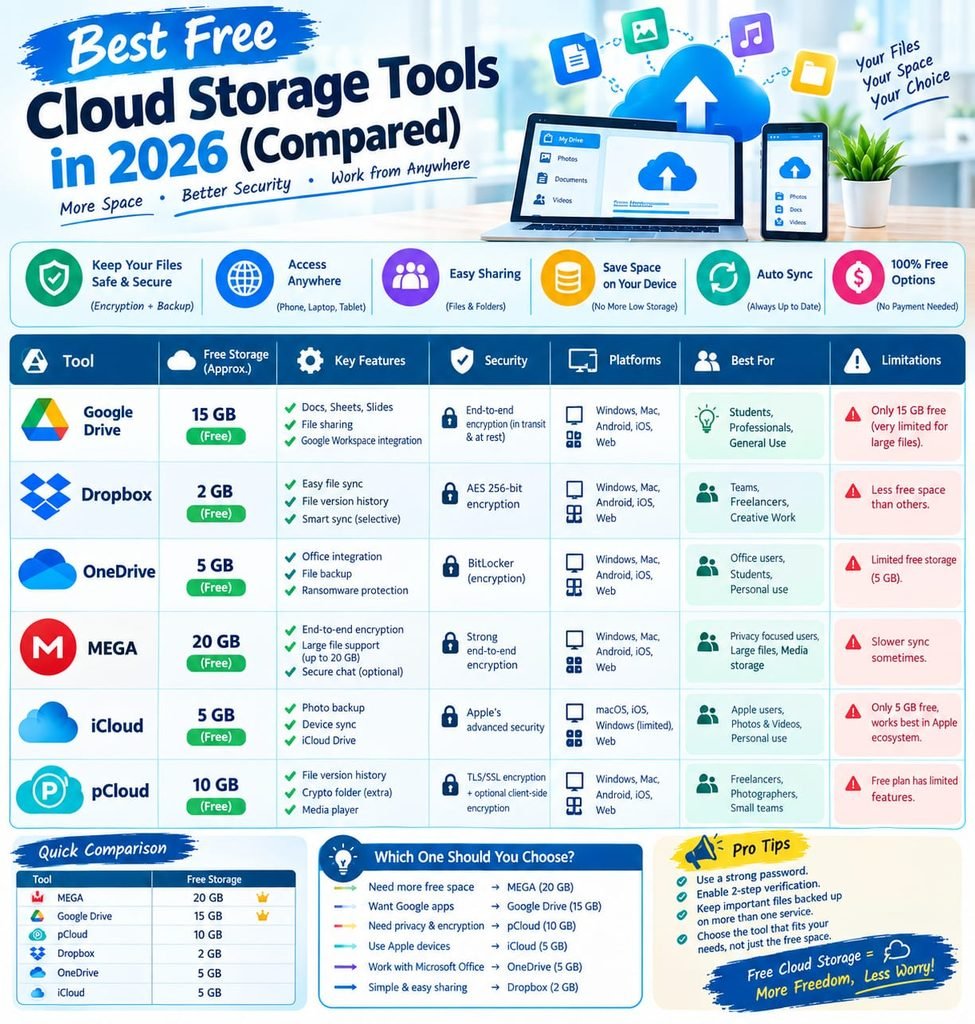
Comparison Table
| Tool | Free Storage | Best Feature | Rating |
|---|---|---|---|
| Google Drive | 15 GB (shared) | Real-time collaboration | 4.7/5 |
| OneDrive | 5 GB | Microsoft 365 integration | 4.4/5 |
| Dropbox | 2 GB | Reliable file syncing | 4.5/5 |
| Google Photos | Shared with Drive | AI photo organization | 4.6/5 |
| iCloud | 5 GB | Apple ecosystem integration | 4.3/5 |
| Mega | 20 GB | Built-in encryption | 4.4/5 |
| Box | 10 GB | Business permission controls | 4.2/5 |
| pCloud | Up to 10 GB | Lifetime plan option | 4.3/5 |
| Sync.com | 5 GB | Zero-knowledge privacy | 4.3/5 |
| Amazon Photos | Unlimited (photos, Prime) | Unlimited photo storage | 4.5/5 |
Common Mistakes to Avoid
- Relying on only local storage. A single hardware failure can mean losing everything without a cloud backup in place.
- Spreading files across too many services. Splitting storage across five different free accounts makes files hard to find and manage.
- Ignoring shared storage limits. Google’s 15 GB is shared across Gmail, Photos, and Drive — a full inbox can eat into your file storage space.
- Not checking sharing permissions. Before sharing a folder, double check whether it’s set to “anyone with the link” versus restricted access.
Pros and Cons Summary
Pros: Free tiers are genuinely usable for everyday personal needs, protects against data loss from device failure or theft, enables access to files from any device, most tools sync automatically with little manual effort.
Cons: Free storage limits fill up faster than expected, especially with photos and video, some free tiers require referrals or specific memberships (like Amazon Prime) to unlock full amounts, splitting storage across multiple providers can get confusing, privacy and encryption levels vary significantly between providers.
Conclusion
Losing files to a broken laptop or a lost phone is one of the most avoidable disasters in modern life, and free cloud storage makes there’s genuinely no good excuse to skip it. Pick the tool that matches your existing devices and habits, turn on auto-backup, and stop worrying about what happens if your hardware fails tomorrow.